Step-by-Step Guide to Using Pubeasy
4 Simple Steps
This page walks you through the four steps to becoming a Pubeasy pro, but you can also contact us for live support.
Step 1: Link Supplier Accounts
Have the prerequisite supplier accounts and then "link" them on the Pubeasy website per the video instructions below.
Note:
- Supplier account numbers are each unique and will be different from your Pubeasy username.
- If you have separate billing and shipping accounts, make sure to link your Ship-To account number.
To view this video in full screen, please click "Watch on YouTube" or the video title.
Need Help?
- Don't have your login credentials? Contact our support team.
- Don't have supplier accounts yet? Contacts for US Suppliers. Contacts for UK Suppliers.
- Need to establish business credit? Read our guide.
Step 2: Search to Find the the Titles You Need
Learning to use Pubeasy's search tools is the first step to building orders, the heart of a buyer's job.
We offer several ways to use search:
- Quicksearch for basic searches
- Advanced Search for sophisticated searches
- ISBN List / CSV Import Tool to build orders quickly from sales history reports or by importing files from other platforms like Edelweiss
Searching
The Quicksearch bar at the top of the page lets you search by ISBN, title, author, or keyword. Search all suppliers in the selected region or narrow your search to only those you have linked.
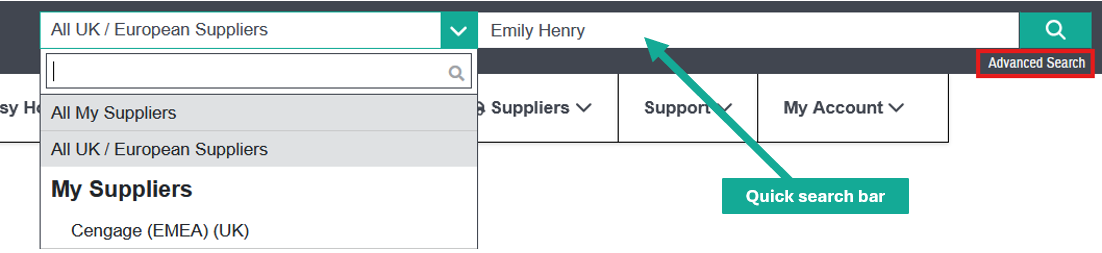
For more search options, click Advanced Search under the magnifying glass.
Filtering Your Results
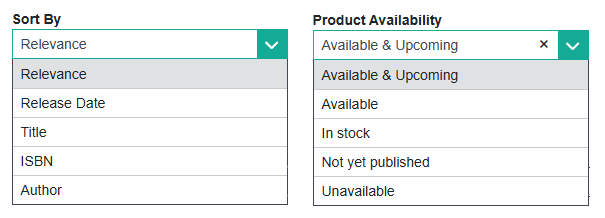
If your search returns multiple results, you can Sort By the options below. You can also Filter by Product Availability to show In stock titles, all published titles Available to order, or Available & Upcoming titles.
Bulk Search with ISBN List / CSV
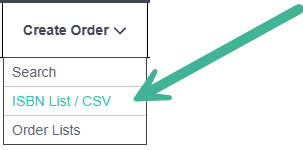
If you already have a list of ISBNs and quantities, use the ISBN / CSV Import Tool to bulk search for a lot of products at once.
Step 3: Draft & Send Orders
Once you've linked your accounts with your suppliers and know how to find titles using search or the ISBN List/CSV Import Tool, you can now create Order Lists, Add to Shopping Cart(s), and Send Orders.
Tip: Before submitting an order, make sure you know your terms.
If a supplier has standard order or shipping minimums across accounts, we have indicated those on their supplier page within Pubeasy (click Suppliers | Supplier and then a specific supplier.) If no terms are listed, then use the Customer Service contact information to ask about the specific terms that apply to your account.
Order Lists
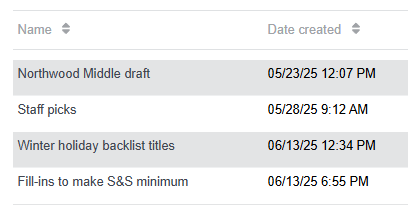
Order Lists can be draft orders that you’ll eventually Add to a Shopping Cart or permanent lists like Staff Picks to have handy as you build orders.
Add to List / Cart
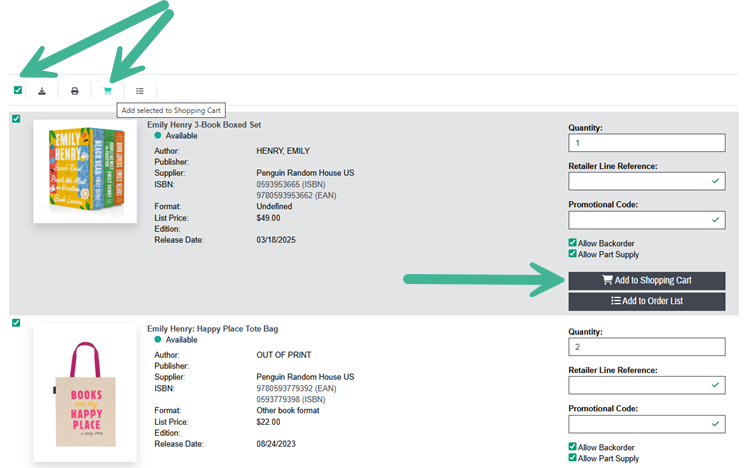
You can add multiples items to your order lists or shopping cart(s) using the icons at the top of your search results page, or use the black Add to Shopping Cart / Add to Order List buttons to add items individually.
Autosort
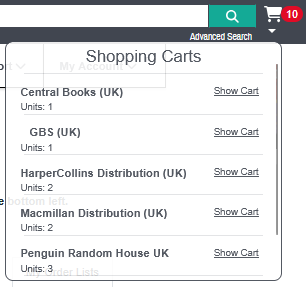
When you Add to Shopping Cart, Pubeasy magically sorts your chosen items into the proper supplier shopping cart. You'll never accidentally add an item to the wrong cart.
Sending Orders
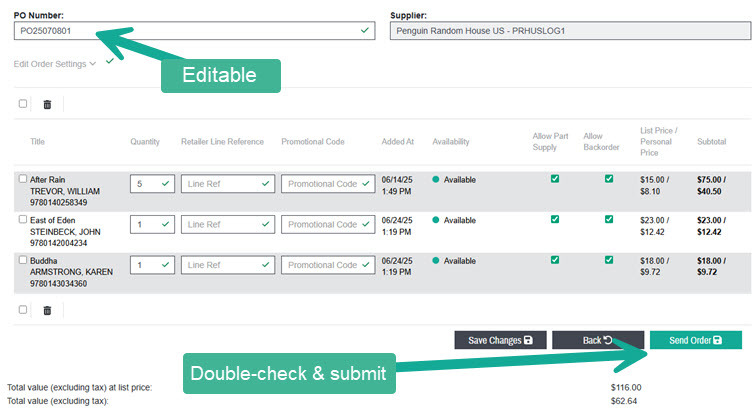
Once you are in a supplier shopping cart, you can use Pubeasy’s suggested purchase order (PO) number or replace it with one of your own. Doublecheck that you are meeting the supplier's minimum order terms and click Send Order.
Ready to Get Started?
Pick a theme for an order list, such as staff picks or a holiday display table. Create your list, then add products to it.
Step 4: Check for Order Status Updates
Once you've placed orders on Pubeasy, you may want to check their status to see if available titles have shipped or if a supplier ran out of stock and a title has backordered.
Tip: Our Supplier Lists indicate which suppliers offer order status information on Pubeasy.
Order Acknowledgments
Suppliers who support Order Status typically “Acknowledge” your order within 24 hours with initial status information pulled from their computers. Once the order drops to the warehouse for processing, title status can update, especially on fast-moving stock.
We recommend returning to Pubeasy after two or three business days to check order status. You will not receive any email notifications.
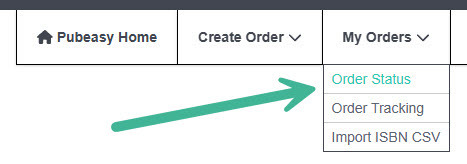
Searching for an Order
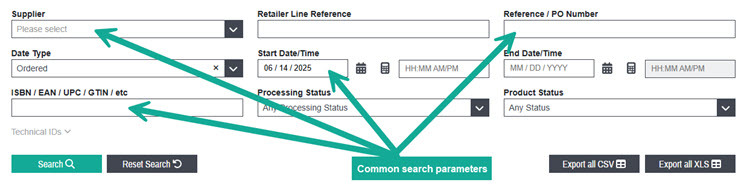
The Order Status page automatically searches for titles ordered in the last three days, but you can search for any Pubeasy order using criteria such as ISBN, PO number, or simply a date range.
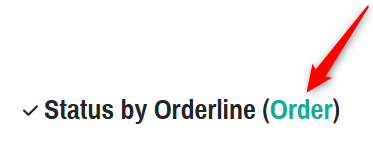
To return search results by purchase order (PO) instead of ISBN, switch to search by Order instead of Orderline by clicking the Order hyperlink at the top of the page.
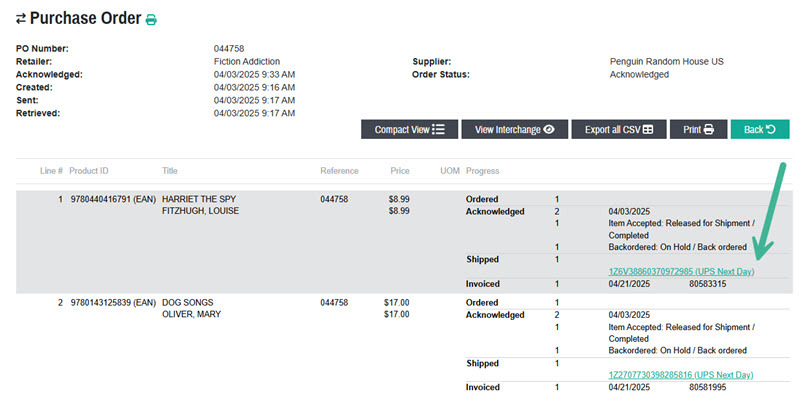
Tracking Numbers
After locating the desired ISBN or purchase order, click on it to view the Purchase Order Detail page. If a supplier has updated the order with tracking information, it will display on the right while you are in Normal View (the default view).